
Changing the lock screen picture on your Windows 10 device is a simple yet effective way to personalize your computer. Whether you want to showcase a favorite photo, a stunning landscape, or a motivational quote, customizing your lock screen can make your daily interactions with your device more enjoyable. In this article, we will guide you through the steps to change your lock screen picture, ensuring that you can transform your device’s appearance effortlessly. By following these easy instructions, you will learn how to select and set a new image that reflects your personality and style. Let’s dive into the steps that will help you achieve a customized lock screen in just a few minutes.
Accessing Settings
To start the process of changing your lock screen picture, you need to access the Settings app on your Windows 10 device. You can do this by clicking on the Start menu and selecting the gear icon, which represents the Settings. This will open the Windows Settings window where you can find various options to personalize your device.
Navigating to Personalization
Once you are in the Settings app, look for the option labeled ‘Personalization’. This section allows you to modify various aspects of your Windows interface, including the background, colors, and lock screen settings. Click on ‘Personalization’ to proceed to the next step.
Selecting Lock Screen
In the Personalization menu, you will see a list of options on the left side. Click on ‘Lock screen’ to access the settings specifically related to your lock screen. Here, you will be able to view and change your lock screen background.
Choosing a Background
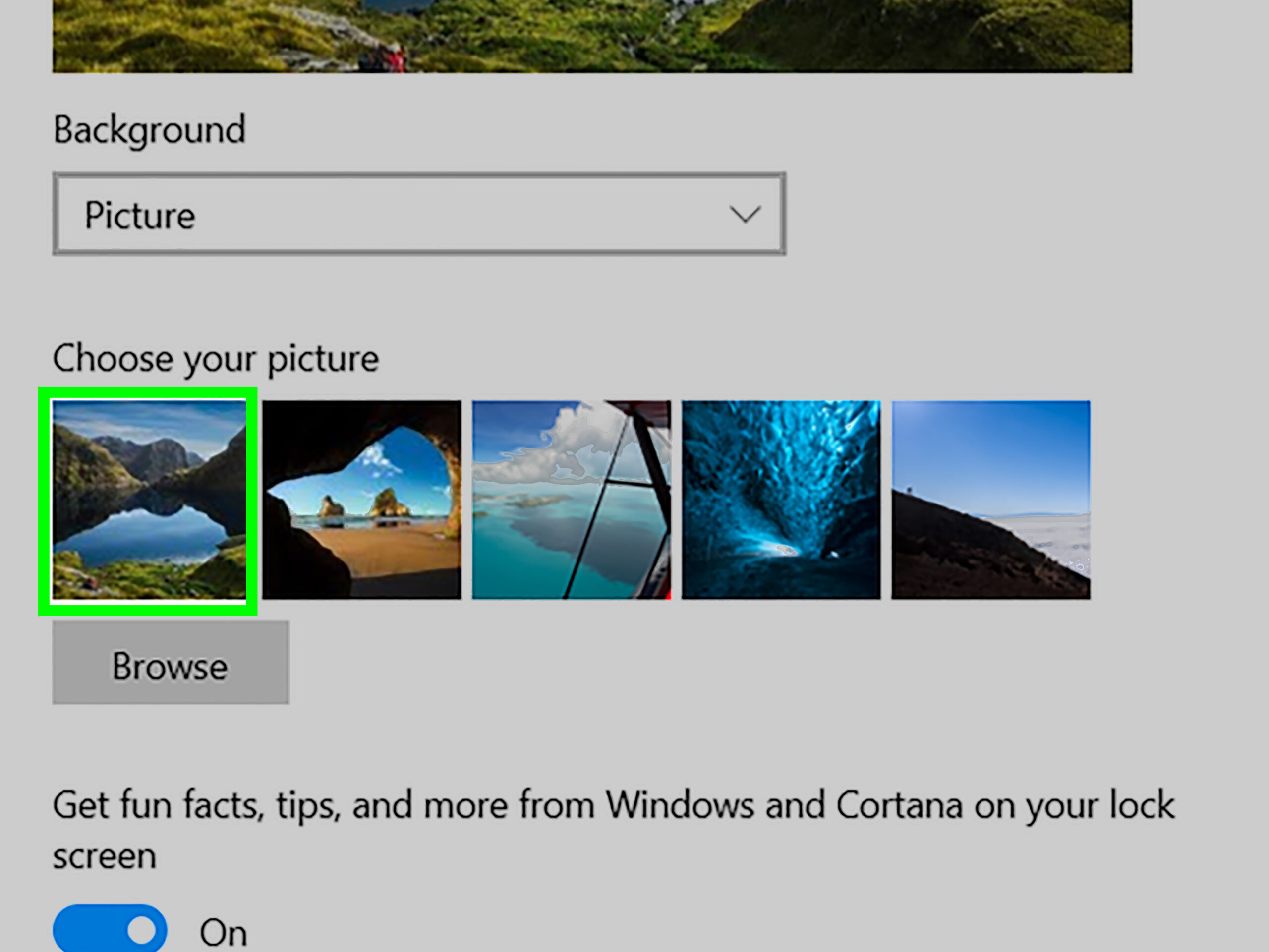
In the Lock screen settings, you will find options to choose your background. You can select a picture, a slideshow, or Windows Spotlight. If you want to use a specific picture, select the ‘Picture’ option. This will allow you to browse your files and choose an image you want to set as your lock screen background.
Finding the Right Image
After selecting the ‘Picture’ option, click on the ‘Browse’ button to navigate through your files and locate the image you wish to use. Once you find the image, click on it to select it, and then click on the ‘Choose picture’ button to confirm your selection.
Applying the Changes
After selecting your desired image, ensure that it is displayed in the preview area. You may also want to customize additional options such as showing the lock screen background picture on the sign-in screen. To apply the changes, simply close the Settings window. Your new lock screen picture will now be set.
Checking the New Lock Screen
To see your changes in action, lock your computer by pressing the Windows key + L. This will take you to the lock screen where you can view your new background image. If everything looks good, you have successfully changed your lock screen picture.
| Step | Action | Details | Tips | Notes |
|---|---|---|---|---|
| 1 | Access Settings | Click on Start, then gear icon | Use Windows key + I for quick access | Make sure you’re connected to the internet for updates |
| 2 | Navigating to Personalization | Select ‘Personalization’ option | Look for the paintbrush icon | Personalization settings can also change themes |
| 3 | Selecting Lock Screen | Click on ‘Lock screen’ from the left menu | This is where all lock screen settings are found | Explore other options for more customization |
| 4 | Choosing a Background | Select between Picture, Slideshow, or Windows Spotlight | Pictures offer static images, while slideshows rotate | Windows Spotlight provides daily images from Microsoft |
FAQs
FAQs
Can I use my own photos for the lock screen?
Yes, you can use your own photos. Simply browse your files in the lock screen settings to select any image you prefer.
How do I set a slideshow for my lock screen?
To set a slideshow, go to the lock screen settings and select ‘Slideshow’. Then, choose a folder with images that you want to display.
Will my lock screen picture change automatically?
If you select Windows Spotlight or a slideshow, your lock screen picture can change automatically based on the settings you choose.
Can I set different images for the lock screen and desktop background?
Yes, you can set different images for your lock screen and desktop background through the personalization settings.
