
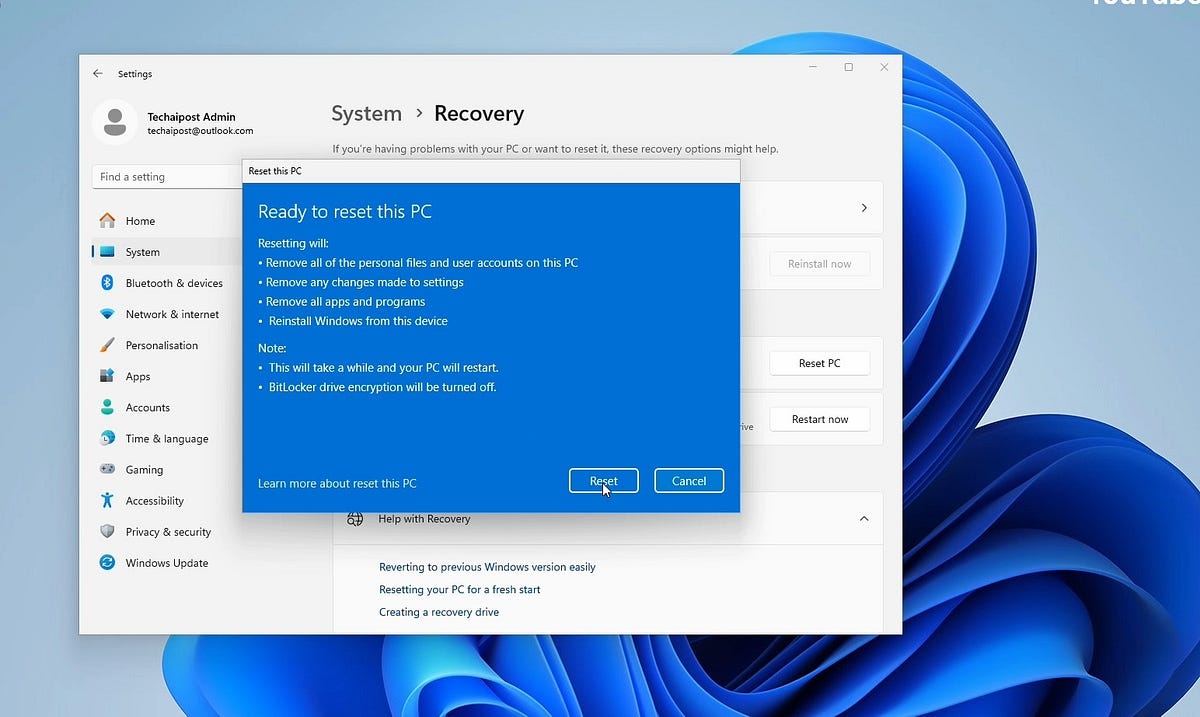
In today’s digital age, maintaining optimal performance on your Windows 11 PC is crucial. Over time, your system may become cluttered with unnecessary files, applications, and settings that can slow it down. Whether you’re preparing to sell your device or simply want to start fresh, factory resetting your Windows 11 PC can be an effective solution. This process restores your computer to its original state, removing all personal data and applications. In this article, we will explore the steps involved in performing a factory reset on your Windows 11 PC, ensuring you can do so safely and effectively.
Accessing Settings for Factory Reset
To initiate a factory reset, you first need to access the Windows Settings. Click on the Start menu, then select the gear icon to open Settings. From there, navigate to the “System” section where you can find options for recovery and reset.
Navigating to Recovery Options
Once in the System settings, look for the “Recovery” option on the left-hand side. Here, you will see various recovery options, including the one for resetting your PC. Click on “Reset PC” to proceed with the reset process.
Selecting Reset Options
After clicking “Reset PC,” you’ll be presented with two options: “Keep my files” or “Remove everything.” Choose the option that best suits your needs. If you want a complete factory reset, select “Remove everything” to delete all personal files, apps, and settings.
Choosing Reinstallation Method
You will then be prompted to choose how you want to reinstall Windows 11. You can either opt for a cloud download, which retrieves the latest version of Windows from Microsoft, or a local reinstall, which uses files already on your PC. Each method has its benefits, so choose according to your preferences and internet availability.
Preparing for Reset
Before the reset begins, your PC will prepare for the process. This may take some time as it checks for necessary files and ensures everything is ready for the factory reset. During this stage, it’s crucial to ensure your PC is plugged into a power source to avoid interruptions.
Executing the Factory Reset
Once everything is prepared, the factory reset will commence. Your PC will restart multiple times during this process. It’s essential not to turn off your device as it resets, as this could lead to complications or corruption of the operating system.
Final Setup After Reset
After the reset is complete, Windows 11 will guide you through the initial setup process. You can create a new user account, set your preferences, and customize your settings as needed. This is your opportunity to start fresh, ensuring your PC runs smoothly without any previous clutter.
| Step | Action | Options | Notes | Time Required |
|---|---|---|---|---|
| 1 | Access Settings | N/A | Open Start Menu | 1 minute |
| 2 | Navigate to Recovery | N/A | Find Recovery in System | 1 minute |
| 3 | Select Reset Options | Keep my files / Remove everything | Choose based on needs | 2 minutes |
| 4 | Choose Reinstallation Method | Cloud / Local | Consider internet speed | 2 minutes |
Frequently resetting your PC can help maintain its performance, but it should be done cautiously. Always ensure that you have backed up your important files before proceeding with a factory reset, as this process will erase all data.
FAQs
What happens to my files when I factory reset Windows 11?
When you perform a factory reset and choose the “Remove everything” option, all your personal files, applications, and settings will be deleted. If you select “Keep my files,” your personal data will remain, but applications will be removed.
Can I cancel the factory reset once it has started?
It is not recommended to cancel the factory reset once it has started. Interrupting the process can lead to system errors or corruption, making your PC unusable.
Will I need to reinstall Windows after a factory reset?
No, a factory reset reinstalls Windows automatically as part of the process. However, you may need to reinstall applications and set up your preferences again.
How long does a factory reset take?
The duration of a factory reset can vary depending on your PC’s specifications and the method chosen. Typically, it can take anywhere from 10 minutes to an hour.
